The Screencast Handoff Checklist That Lets an AI Edit Your Tutorial End to End Without You Opening a Timeline
A pre-recording checklist that makes AI editing a quick review.
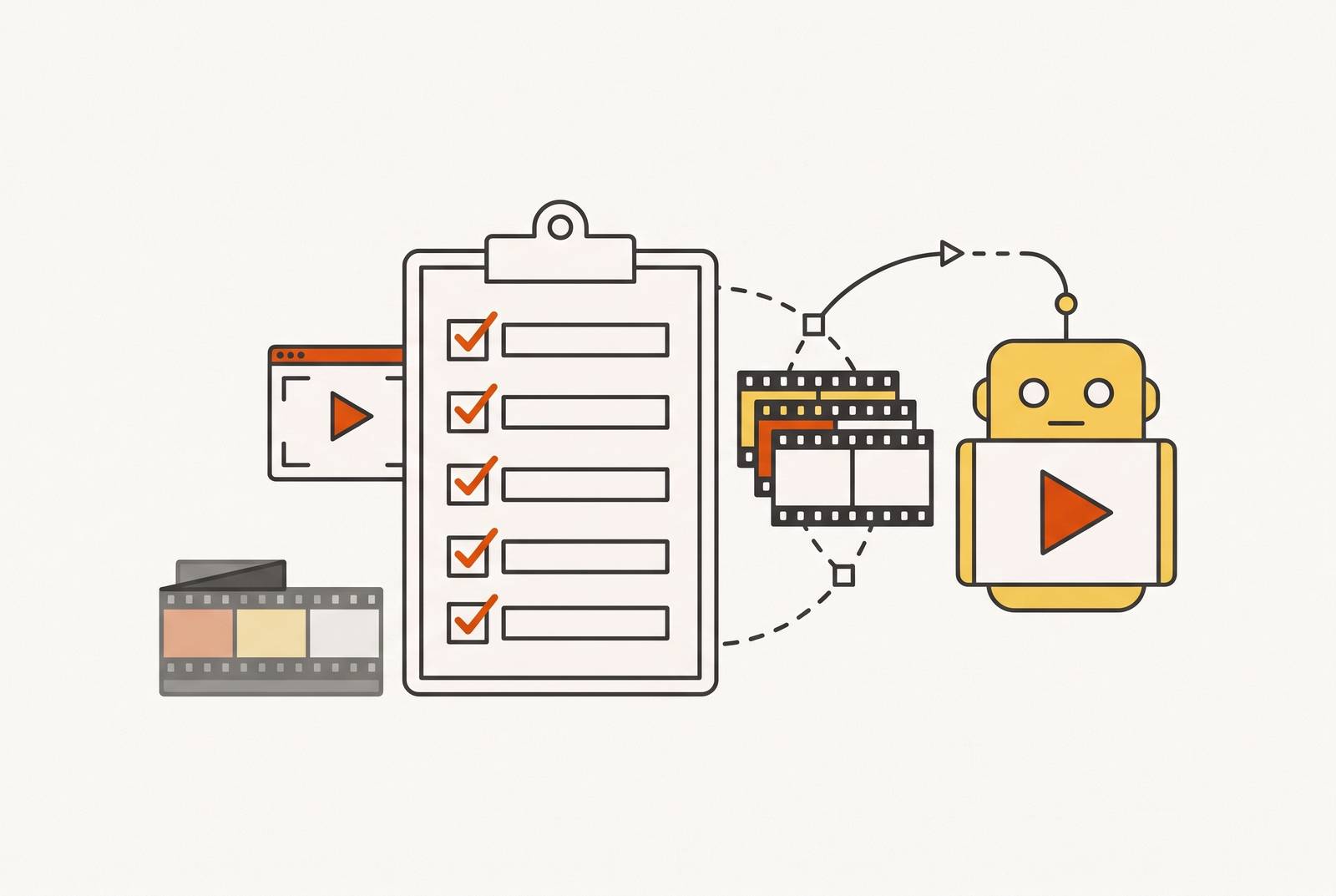
Agentic video editing lets an AI make decisions about cuts, captions, pacing, and sequencing. For screencasts, that autonomy depends on clean speech, clear steps, accurate on-screen content, and a compatible recording format. This checklist explains how to prepare that handoff so editing videos with AI becomes a brief-then-review workflow.
Why the AI editor's job begins before you hit record
You upload a raw screencast expecting a finished tutorial. The output comes back half-finished, with awkward cuts, wrong captions, and zooms that seem more interested in the desktop than the demonstration. Now you spend the time you saved on a casual recording fixing the edit. The tool gets the blame, but the footage is often the bottleneck. An AI editor cannot turn an unclear demonstration into a clear lesson by trimming harder.
Deleting a sentence from the generated transcript removes the corresponding video segment, so the text becomes an editing interface. That works cleanly when speech is clear and each step has a detectable boundary. When sentences overlap actions or restarts run into corrections, the editor has fewer clear places to cut. The preparation therefore follows three linked problems, which are understanding speech, understanding structure, and understanding the sequence of events.
What the AI is actually trying to parse when it ingests your screencast
An AI editor runs three analyses on the recording. Speech analysis creates the transcript, and silence and energy analysis finds dead space, restarts, and emphasis. Visual-sequence analysis tracks movement into new areas of the interface to guide zooms and pans. These analyses depend on one another in practice. A poor transcript undermines cuts, uneven pacing confuses silence detection, and a cluttered screen gives the zoom sequencer competing targets.
The handoff needs five prepared inputs, namely approved source material, clear content in-points and out-points, a consistent delivery format, independently verified copy, and an implicit map of the steps. That map lives in the recording’s structure. It tells the editor where one part ends and another begins so a person does not have to check every timestamp.
Vorec’s automation guide distinguishes script drafting from screen actions, voiceover timing, and click-based zoom from conceptual explanations, non-standard sequencing, and creative structure. The latter still need a creator’s judgment. Detecting a pause does not reveal why a learner needs it, and reading a price does not establish whether it is current. Your job is to give each analysis something unambiguous to work with.
Locking your environment before the first frame is captured
Close every application and browser tab that the tutorial does not need, and turn off notifications. Give the visual sequencer fewer competing targets. Set the browser and operating system to a neutral or brand-consistent theme, then prepare example data, dummy accounts, and placeholder content. Guidde’s tutorial guide identifies closing unnecessary tabs and applications and having a clear workflow as preparation for footage the AI can structure.
Next, close windows and turn off fans or HVAC where you can. Silence the phone, too. Use a dedicated microphone at a consistent distance rather than laptop audio that picks up keyboard and trackpad clicks. Before each session, record a 10-second silence test and listen to it through headphones. Noise suppression can cut down on noise, but it cannot bring back words that the room has already swallowed.
Record at the display’s native resolution so scaling does not soften interface text. For browser workflows, choose the zoom percentage before you start. Leave it there throughout the take. Mid-session zoom changes introduce discontinuity that the AI may interpret as a cut. These checks are small, but their consequences are baked into every frame and word that follows.
Structuring the recording so the AI can detect chapter boundaries without being told
Keep each recording to one workflow or a group of closely related steps, and aim for under five minutes. Unrelated features create competing chapter candidates without a clear hierarchy. Longer takes also introduce more silence variation and delivery drift. A recording needs a clear route. Guidde’s guide and Vorec’s workflow both describe logical action order without mid-recording branching as a condition for AI narration generation.
Within that route, leave a two-to-three second pause between major steps. The silence provides a stronger boundary than a mid-sentence breath and separates fillers from the next sentence. Speak the step, pause, then perform the action. That separation gives the transcript editor and visual sequencer distinct events rather than speech and cursor movement tangled together.
Open each logical section with a consistent phrase such as “The next step is…”. This gives the transcript editor a text pattern for grouping content, generating chapter titles, and assembling segments. There is no need to sound like a railway announcement. With clean boundaries and signposts, the transcript becomes a usable editing surface, so the AI can sequence the tutorial through text.
Delivery habits that give the speech analysis clean material to work with
Speak a little more slowly than feels natural on camera. Technical narration has product names, command strings, and domain terms that are harder for transcription to handle than everyday speech. Those words need room to land. Because edits depend on the generated text, a transcription error can affect both the cut and the instruction shown in a caption. Clear delivery protects more than readability.
Before recording, identify the product names, keyboard shortcuts, CLI commands, menu paths, and domain terms the tutorial uses. Rehearse a consistent, full spoken version of each. Say “Command Shift P” rather than “this shortcut” so the transcript contains the actual instruction. This vocabulary preparation also defines the targeted review needed after the AI finishes.
If you misstate a step, stop completely, leave two-to-three seconds of silence, and restart the whole sentence. Do not patch it halfway through. A clean restart gives the editor a whole, nonoverlapping block it can remove. Likewise, avoid running fillers such as “um” or “basically” into the next word, where automatic removal can leave an audible splice. Keep microphone distance and, when using a camera, camera position fixed across takes so changes in audio character do not confuse silence detection.
Preparing on-screen content so captions and annotations carry accurate information
Captions and annotations come from the spoken transcript and, in some tools, text detected on screen. Before recording, check the product names, prices, interface labels, and version numbers on screen against the approved copy. The AI can reproduce outdated text perfectly. Keep the approved version in a separately reviewed source such as a caption file, product sheet, or legal note, because AI-generated frames are not dependable evidence for specifications, prices, or legal claims.
Record against a stable, production-ready interface that represents what the audience will see. Check dashboards and settings panels for trial states, admin-only views, or development flags. Let loading spinners and in-progress operations finish before capture. Otherwise, the visual sequencer may treat these brief states as parts of the tutorial that matter. For SaaS teams whose interfaces change often, mark tutorials that have UI-dependent visuals and plan to record them again when those views change.
Plan to check the captions against the technical vocabulary list after the edit. Keep this check narrow and deliberate. It remains a human responsibility that clean narration makes faster. Verifying the source before capture avoids having to correct the same stale information wherever the AI later places it.
Configuring your recording tool so it produces the handoff format the AI editor expects
Confirm what the editor can refine before choosing the recording output. An MP4 or MOV that a particular tool can only accept or reject as a whole offers a different handoff from a project file or clip-level export it can reassemble. The file extension alone is not the decision. The editor needs to receive the layers and events required for its automatic editing pass.
Where supported, record screen and camera on separate tracks so zooming the interface does not also zoom the presenter. Keep system audio separate from microphone input so voice isolation can work on the narration without changing interface sounds that need to stay. Enable recorded click data, too. Vorec’s workflow documentation identifies native click data as an input for click ripples and click-based auto-zoom. Recorded events give the editor richer information than clicks inferred from rendered pixels.
Set resolution, frame rate, and codec settings before building the recording library, then keep them the same. Uniform sources help a batch-based template or style apply consistently. Confirm share-on-export or instant-link settings before capture so sharing does not become a separate bottleneck. An all-in-one recording, editing, and sharing environment also avoids format translation because cursor paths, clicks, and silence markers remain native inputs.
Running a pre-flight check: the 10-point verification sequence before every recording session
First, clear the desktop, close non-tutorial applications, silence notifications, and set a consistent browser zoom.
Second, listen to the room-tone test, keep the microphone in the same place, and turn off things that make noise where you can.
Third, define one workflow or step cluster with an estimated duration under five minutes.
Fourth, check that the interface is representative and production-ready, without trial banners, errors, or in-progress operations.
Fifth, review and rehearse full, consistent pronunciations of product names, keyboard shortcuts, and command strings.
Sixth, commit to stopping, pausing two-to-three seconds, and restarting the full sentence after a mistake.
Seventh, plan two-to-three second pauses between major steps before moving the cursor.
Eighth, enable separate screen, camera, and system-audio tracks where supported, and turn on click-data recording.
Ninth, check which input format the editor needs and turn on instant-link generation or share-on-export where the tool offers it.
Tenth, reserve a time-boxed technical-caption review before publication.
The one part of editing the AI still returns to you, and how to make it fast
The AI does the mechanical editing pass, while the creator decides whether the result gives the audience what it needs. A system can detect silence without knowing whether it gives a learner time to understand a difficult step. Cutting every pause may make the tutorial shorter but leave it feeling robotic and rushed.
Review deliberate pauses to check that the edit preserves useful breathing room. Then check captions against the prepared technical vocabulary, approve the proposed thumbnails and chapter titles, and watch the assembled tutorial to check that the content is right. This is a focused check that the AI has not misrepresented a workflow step or compressed away the time needed to follow it.
That division of labor is the honest limit of end-to-end automation. A promise of no manual timeline work should not become a promise of no human approval. With a well-prepared source, evaluating an assembled result can reduce the remaining pass from hours to minutes. The checklist turns editing into review.