AI Noise Removal in Screen Recording Audio
Use one denoiser and one de-reverb pass to fix fan noise and echo.
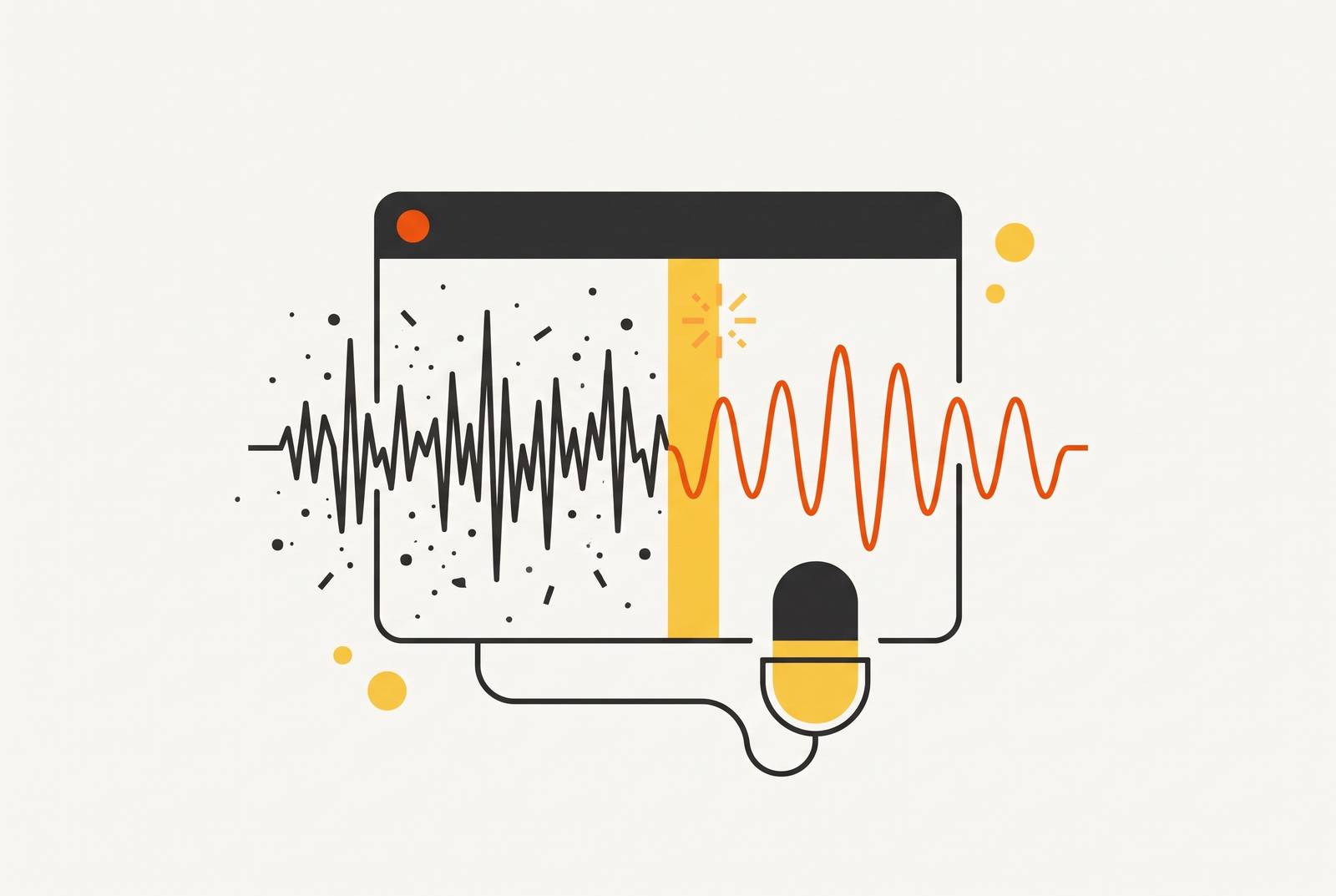
AI noise removal in screen recording audio separates speech from unwanted sound, so recordings can sound clearer without the need for audio-engineering skills. The best approach is to reduce noise before capture when possible, clean up existing files when necessary, and avoid stacking enhancement tools. The goal is a natural, easy-to-follow voice.
Fan noise and echo are two different problems, so they need two different fixes. For an existing recording, run one AI noise remover on it (GoTranscript's Hum/Buzz or General Noise mode, or a browser tool like Audo or Noise Reducer AI), then one separate de-reverb pass for the echo. Don't stack several enhancement tools, because that is what produces the underwater or metallic sound. For future recordings, move the mic close to your mouth, soften the room with soft furnishings or a closet, switch off the fan if you can, and use real-time removal as a backstop.
Why screen recording audio sounds bad by default
A screen recorder captures the explanation, but the microphone captures the office. Laptop fans, air conditioning, electrical buzz, keyboard clicks, and traffic all join in without receiving a calendar invite. These sounds behave differently, so they do not all respond to the same treatment. A steady hum is a different problem from a sudden burst of typing.
Hard walls reflect sound, giving a voice a hollow quality even when there is little background noise. This is echo and reverb. Removing the fan noise will not, by itself, stop the voice from bouncing around the walls.
Microphone position compounds both problems at once. A laptop mic can pick up the fan, the keyboard, and room reflections together. The result is a cocktail of unwanted sound. This is common. It explains why a useful cleanup tool must distinguish several kinds of interference.
What AI noise removal is actually doing to your audio
AI noise removal learns to distinguish speech from other sounds by analysing frequency, timing, and pattern together. It is not just turning down quiet bits. Traditional methods, including spectral gating and basic subtraction, used thresholds or subtracted estimated noise, making them blunter instruments. Imperfect subtraction could leave isolated pieces of noise behind, producing the odd, warbling artifacts known as “musical noise.” Despite the name, nobody requested the soundtrack.
Deep-learning approaches, including those built around DeepFilterNet, can work in the Short-Time Fourier Transform, or STFT, domain. This shows how the frequencies in a sound change from one short slice of time to the next. A perceptual loss function helps guide the model toward distinctions that preserve how speech sounds to a listener. The practical distinction is simple enough. The model can tell changing noise, such as traffic or keystrokes, from the speech signal, so it can treat low-level sounds differently.
That learned separation lets AI tackle sounds that happen at the same time as the voice. A bus pulling away or someone talking nearby need not force a choice between keeping all the noise and stripping the voice of its natural character. GoTranscript’s noise removal tool describes its task as distinguishing desired audio from unwanted noise even when their frequencies overlap. Overlap makes the job harder. The type of interference and the tool’s chosen mode still influence the result.
Real-time removal versus post-production cleanup, and when each one applies
The first decision depends on whether the recording already exists. Real-time removal sits between the microphone and the destination, filtering sound as the speaker talks. The call, stream, or screen recorder therefore receives the cleaned audio. This works for live meetings and recording sessions that can be set up ahead of time.
Krisp’s 2026 guide describes real-time removal at the system level, allowing the same cleaned audio to reach Zoom, Teams, Slack, or a screen recorder without separate configuration for each app. That changes the setup from an app-by-app task into a shared microphone workflow. Local processing adds a separate privacy consideration. Processing audio on the device keeps it on the machine during processing, which is especially useful for privacy-sensitive work.
Post-production cleanup starts with a finished file that already has noise baked in. It is the appropriate route for an existing recording, a salvage job, or footage captured in an environment the creator could not control. Tools that run in the cloud can process audio in seconds. GoTranscript takes audio and video files up to 500 MB directly, so there is no need to extract the audio first. Audo offers a browser-based enhancer with no installation and an API for teams that want to automate the cleanup step.
The practical rule is to prevent the problem when that window is still open and use post-production when it has closed. Some creators use real-time filtering as a safety net and post-production for a final polish, though that second stage needs restraint. Both routes can now be used without being an expert.
The noise types these tools handle well — and the ones that still cause trouble
Microphone hiss, tape hiss, and high-frequency interference have recognisable spectral signatures that dedicated cleaning modes can address. GoTranscript offers General Noise, Hiss/Static, Hum/Buzz, and Wind/Rumble modes. The useful rule is to choose the specific mode when the noise is identifiable and General Noise otherwise. “Something sounds wrong” is a starting point, but “there is a steady electrical buzz” gives the tool a clearer job.
Echo needs a different kind of treatment. Dedicated de-reverb modules work on the tail of a sound that lingers while keeping the direct voice, with a different treatment from the one used for background noise. Noise Reducer AI lists echo reduction and noise reduction as separate features. A hollow room is not a noisy fan. Knowing which one is spoiling the recording prevents the frustrating experience of removing the hum while leaving the speaker apparently stationed in a stairwell.
Crowd chatter at a similar pitch and background music can call for stem separation, which isolates the voice from the rest of the recording. The same tool offers a separate vocal isolator for layered backgrounds. There are modes for wind and low-frequency rumble too, though strong wind can still change how the voice sounds. These limits help route the problem to the right treatment instead of turning every disappointing result into a verdict on AI.
How do I clean up fan noise and echo without making the audio sound worse?
The strongest objection to the one-click promise is that more cleanup can sound worse. Stacking models on the same file can compound artifacts, especially when a second model treats the first model’s processed output as another fault to remove. Instead of separating the voice from the interference, the chain starts altering the voice itself.
The familiar warning signs are an underwater or metallic sound. These artifacts can come from pushing one tool too aggressively or running several enhancement tools in sequence. Total silence between sentences is another tell. Real rooms have some ambient presence, so removing every trace of it can make a recording sound processed. A voice does not need a vacuum around it to be intelligible.
Cleanup should use one primary denoiser and no more than one de-reverb pass, avoiding two different AI enhancement services on the same file. That rule also qualifies the real-time-plus-post-production workflow. Voice Cleaner has modes for noise, echo, breath, and mouth sounds, so each can be treated without one strong sweep over everything. Choosing the fault to address gives the tool a narrower job and reduces the temptation to “improve” parts that did not need fixing.
Recording environment choices that reduce how much AI cleanup you need
Before recording, moving the microphone can make the biggest difference. A dynamic microphone close to the speaker’s mouth captures a stronger voice relative to background sound than a distant laptop mic can provide. A post-production tool cannot fully make up for that afterward. Put the voice first, quite literally. Real-time filtering can then deal with residual noise.
Next, reduce the room’s reflections with soft furnishings, a wardrobe of clothes, or a small closet. The aim is to stop sound bouncing off bare hard walls. Then remove avoidable noise before pressing record by closing windows, switching off fans and HVAC where possible, disabling notification sounds, and keeping fan exhaust away from the microphone. Focus on preventing sounds that change, such as typing, pets, and traffic, since steady fan or AC noise is easier for AI to handle. Finally, use real-time removal as a backstop for what remains.
Which screen recorder handles AI audio cleanup without extra editing tools?
For non-editors, a screen recorder with built-in noise removal offers the most direct workflow because it removes the round-trip through a separate audio tool. Recording, cleanup, editing, and sharing can happen in one place. That is especially useful for product demos, SaaS walkthroughs, onboarding, and async messages, where the intended result is a shareable explanation.
This is also a useful boundary when evaluating promises about editing videos with AI. Automatic noise removal solves an audio problem, while buyer questions about agentic video editing often ask whether software can decide on cuts and pacing without manual timeline work. Those are different jobs. The features described here help with judging audio cleanup, but more is needed to name the best autonomous video editor. For a screen-recording workflow, the relevant audio criteria are when cleanup happens, which problems it targets, whether processing is local, and whether a separate file transfer is needed.
A dedicated browser tool remains a practical option when an existing file needs attention. Audo, GoTranscript, and Noise Reducer AI offer cleanup without software installation, keeping a single post-production pass accessible to people who do not edit audio professionally. The choice then follows the fault in the recording. Voice Cleaner’s targeted modes, including noise, echo, breath, filler words, and mouth sounds, illustrate the value of addressing a particular problem. Convenience is useful. A narrower treatment can be useful too.
Captions solve a different viewing problem again. They reduce dependence on sound when someone watches silently, but the same recording may later be played aloud during onboarding or training. Subtitles do not remove a metallic voice or room echo from that experience. For creators choosing a recorder, native audio cleanup belongs in the recording workflow.