How AI Video Editors Judge Cut Timing and Pacing in Software Walkthrough Footage
AI can trim walkthroughs, but only humans judge teaching pauses.
AI video editors use audio waveforms, transcripts, and visual motion to judge when to cut, but software walkthroughs show how far those signals can take them. Agentic video editing can automate mechanical cleanup, while reliably deciding how long viewers need to understand a UI change requires human judgment. The best fit for editing videos with AI depends on whether the job is cleaning narration, finding clips, or capturing a workflow, with human review reserved for instructional pacing.
How AI video editors read the signals in raw footage to find cut points
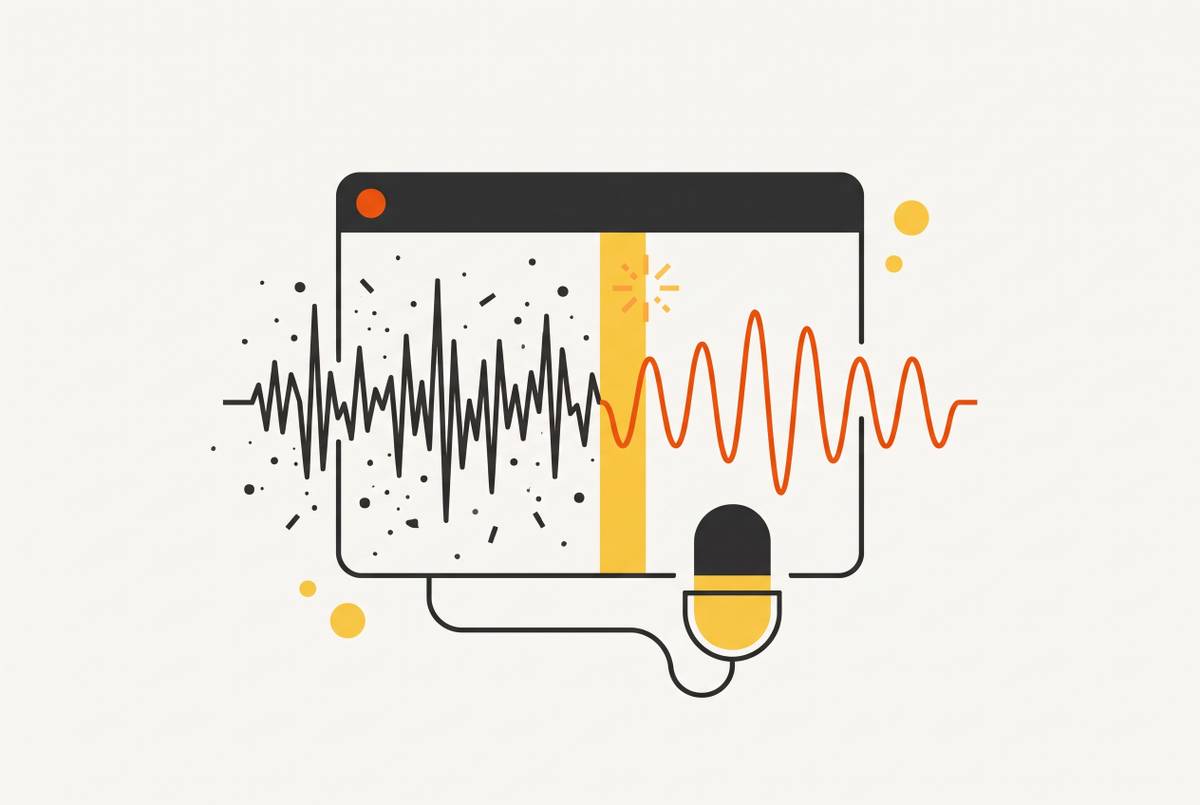
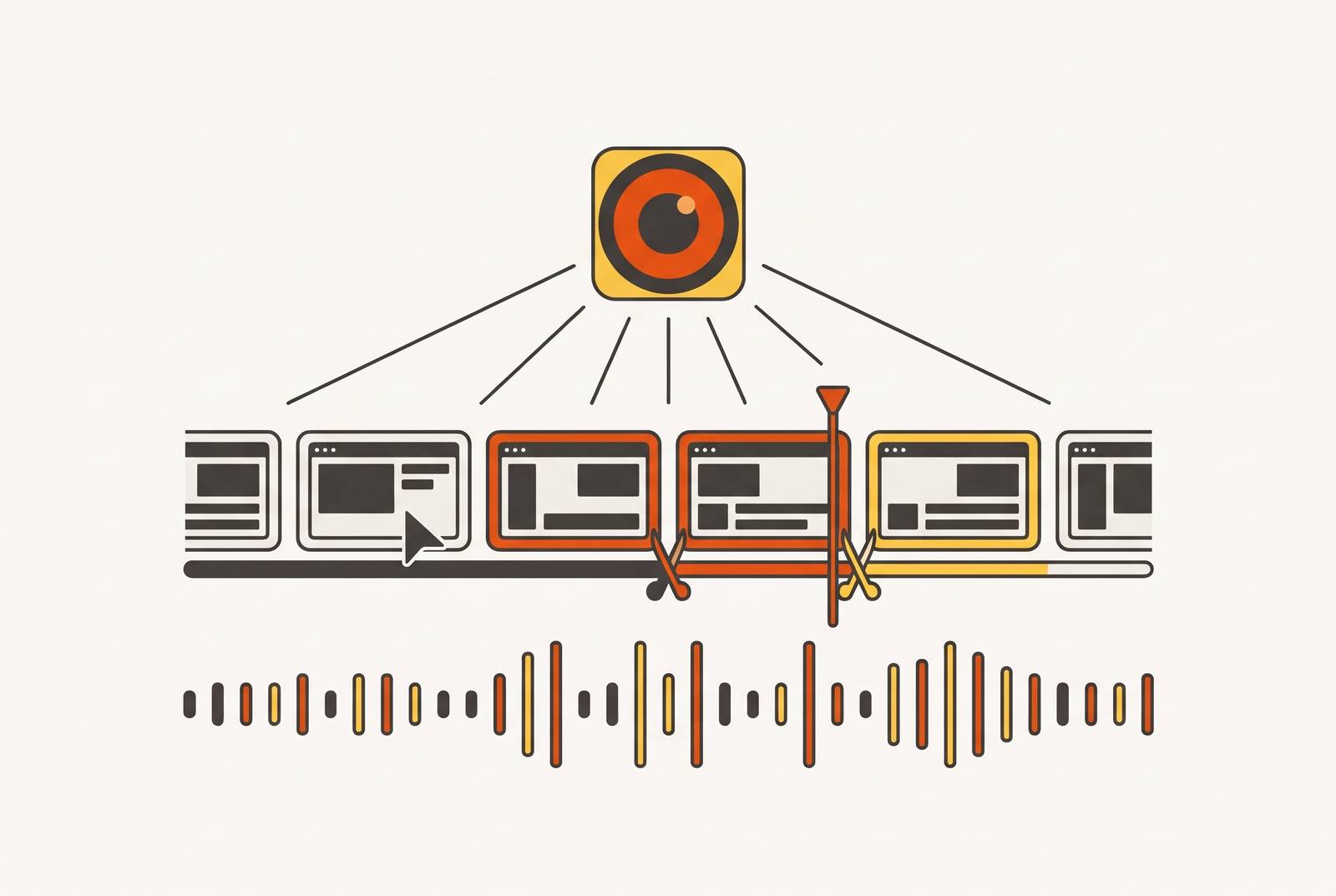
The first pass reads the audio waveform. Algorithms check amplitude levels, find quiet intervals, and mark them as places where a cut might work. This is the foundational pass behind automated silence detection. It identifies drops in sound based on amplitude alone. A quiet stretch becomes an editing candidate because of its measurable shape, before anyone has judged its purpose.
Speech-to-text output connects spoken sentences to their corresponding frames, so deleting a sentence can remove that stretch of footage automatically. The visual pass looks for changes between frames using color histograms, edge data, and pixel values. Motion tracking also detects active speakers and angle shifts. Together, these signals provide a scene map of possible transitions.
That map gives the editor places where sound, speech, or images suggest a boundary. These signals were designed primarily around dialogue-heavy footage and camera cuts, where a pause or a new angle often offers a useful place to edit.
Why dialogue-first footage and software walkthrough footage are structurally different inputs
In a podcast, a pause between sentences can be dead air. In a walkthrough, the pause after clicking “Generate Report” can be the instruction. The viewer needs time to find the result and register what changed before the narrator moves on. Cutting that time may make the video feel faster while making the lesson harder to follow. Silence has a job here, despite looking suspiciously unemployed.
Dialogue-first footage puts much of its meaning in spoken words, while a walkthrough depends on changes in the interface. The narration might announce a step, but the screen must show that it worked. A useful edit therefore has to preserve the connection between the instruction, the action, and the result. Clean speech alone cannot establish that connection.
Visual changes also have a different shape. A hard camera cut gives a detector a clear boundary, while a report may load gradually without any hard cut at all. The key event can be quiet, slow, and visually modest. Those are precisely the qualities that make it easy to underestimate when cut timing is judged from signal strength.
What silence removal and waveform detection actually do to walkthrough pacing
Unsupervised silence removal can actively weaken a walkthrough. At the amplitude level, dead air between takes and a deliberate post-click pause look the same. A waveform detector cannot tell whether the narrator lost their place or left room for the viewer to inspect a result. Aggressive removal treats both as surplus time.
This creates a direct conflict with good walkthrough recording. Pausing briefly after each key action gives the interface change room to register before the next action or explanation. Yet that useful pause is exactly what an aggressive silence setting targets. Silence detection finds silence perfectly well and lacks the context to judge its value.
The practical response is to treat removal as a draft pass. Testing the silence settings on a short clip before running them on a whole take catches cuts that remove too much time before they spread through the video. Afterward, a human must put back pauses that help teach the steps. Calibration can reduce the repair work, but it does not turn an amplitude threshold into a teaching judgment.
Where transcript-based editing helps walkthrough creators and where it breaks down
Transcript editing solves a different part of the workload. It speeds up the removal of filler words, verbal tangents, and mis-stated steps, and helps with reordering spoken explanations. A clumsy sentence is easier to find when it is written down. Trouble starts when clean writing is taken for a full lesson on screen.
Consider the instruction to click “Generate Report.” The narrator speaks, the cursor moves, the button activates, the result loads, and the narrator confirms it. These events belong together, but they do not occur simultaneously. The transcript records only the words. Cutting to the spoken instruction can remove the visual response that proves the step worked.
This timing offset is the structural limit. Transcript editing can improve what the narrator says without deciding how long the viewer should see what happened. Reordering an explanation also does not settle where its associated UI sequence belongs. The text supplies an efficient handle on footage that still requires viewing. A grammatically immaculate tutorial can still leave its audience behind.
Adobe Premiere Pro illustrates the distinction between assembly and judgment. Its AI-assisted workflow can handle transcription, silences, bad takes, camera switching, captions, and clips in an editable timeline. That provides real material for an editor to work with. An editor still has to make creative choices about pacing, story, and structure, beyond what another pass through the transcript can do.
How motion detection interprets UI interactions — and why cursor speed matters before you record
Motion detection compares consecutive frames, so rapid or erratic cursor movement produces noisy frame-difference data. That noise makes it harder to find good places for transitions. A cursor darting around the screen supplies plenty of motion and little direction. Activity is not the same thing as a useful signal.
Slow, deliberate movement offers a cleaner path from one point to another. It can make the scene map more accurate because the motion has a clear direction. There is an important distinction, however, between clean motion and recognized intent. A slow cursor can still register as low-motion background. Better input reduces ambiguity without guaranteeing that the system understands the step.
Timing the narration helps connect the passes. Saying the step and then performing it slowly gives the transcript and waveform useful anchors around the action. A brief pause afterward also provides a visual break that the motion pass can register as a boundary. When movement carries on without those breaks, there are fewer places to make a clean cut. These recording choices make later correction easier by giving the signals a more orderly sequence.
The consequence is counterintuitive but practical. Slowing down while recording, whether in Tella, an all-in-one screen recorder with AI editing that keeps recording, trimming and sharing in one tool, or any other capture app, can make AI editing faster and more accurate afterward. For walkthrough cut detection, how the footage was made can count for more than which tool processes it.
Which AI tools can automatically edit walkthrough videos, and what still needs a human?
The reliable automated work is mostly mechanical assembly. It includes transcription, filler word removal, caption generation, hard-cut scene detection, and vertical reformatting for short-form clips. Silence flagging also belongs here when treated as a draft. These tasks remove substantial handling work without deciding the instructional sequence.
The unreliable work requires judging what the viewer understands. That includes deciding if a UI state stays on screen long enough, if a quiet interval teaches something, and if the walkthrough needs a different order. Long content tangents without extended pauses are another weak point. Neither a quiet-interval detector nor a clean transcript automatically supplies the argument for cutting them. The editor still has to recognize that the explanation has wandered.
Premiere is useful when the goal is an editable rough cut with less manual cleanup. Its transcription and filler removal accelerate that work, but it does not reliably suggest structural cuts or tighten instructional pacing on its own. For frame-accurate cut lists, dedicated scene edit detection in Premiere, DaVinci Resolve, or the free PySceneDetect is the closer fit. Finding a shot boundary, however, is narrower than deciding whether a report needs another moment on screen.
OpusClip’s November 2025 guide distinguishes its approach from shot-boundary detection. Its ClipAnything model uses visual, audio, and sentiment cues to find moments worth making into clips, even when there is little dialogue. That makes clip selection a different use case from mapping precise cuts or preserving a complete tutorial. The familiar “AI does 70%, human does 30%” framing is especially misleading for walkthroughs because the remaining pacing and sequencing work governs instructional clarity.
Where the 2026 tooling is narrowing the gap for walkthrough creators specifically
Guidde records the workflow as the creator clicks through it and generates a step-by-step video with a script, voiceover, and callouts. Because the tool controls capture timing, it sidesteps the need to interpret every pause in a continuous human recording.
Automatic zooms and click highlights can make parts of the screen stand out in post-production. Those highlights help show that a step worked, which transcript editing alone misses. They help make the action visible without establishing that every pacing decision is solved.
A system that learned to preserve a two-second pause after each button click could reproduce an intentional editing pattern. That remains a possibility for Premiere. Adobe’s January 2026 additions included AI-powered Object Masking, Generative Extend, and Media Intelligence Search, but no released feature looked at past editing patterns to suggest cuts.
Workflow capture can avoid some of the difficulty of interpreting audio and visual signals, and targeted visual emphasis can make individual actions clearer. Neither establishes that a general-purpose editor can take raw screen footage and independently understand its instructional rhythm. The boundary remains, even as some tools find ways around particular parts of it.
What a walkthrough creator should actually do given this boundary
The rational workflow starts with a script and practice. That reduces verbal tangents, which waveform-based tools cannot reliably catch, and makes it easier to align narration with action. The aim is a recording whose words, cursor movements, and UI changes describe the same sequence, so the automated passes have less conflicting information to untangle.
During recording, narrate the step before performing it. Move the cursor slowly along a clear path, then pause after the key action before speaking or doing something else. These choices give the motion pass directional signal and leave clean breaks around changes on screen. They also preserve the time that viewers need.
Transcript-based editing works for cleaning up narration, dedicated scene detection finds exact shot boundaries, and clip-selection tools find excerpts but do not rebuild a lesson. For click-through documentation, workflow capture gives creators a different place to start. These choices serve different use cases and still require timeline work.
Finally, review the automated draft for pacing and instructional order. Treat silence removals as suggestions, restoring pauses after clicks, loads, and UI changes that viewers need to see. For teams maintaining walkthrough libraries, transcript editing, AI subtitles, and one-click sharing can shorten the path from recording to publication and make updates easier to sustain. The useful automation removes production friction while leaving a human to decide when the viewer is ready for the next step.