Handing Your Raw Screencast Recording to an AI Editor and Getting a Publish-Ready Tutorial Back
AI handles script, voice, and sync so you review before publishing.

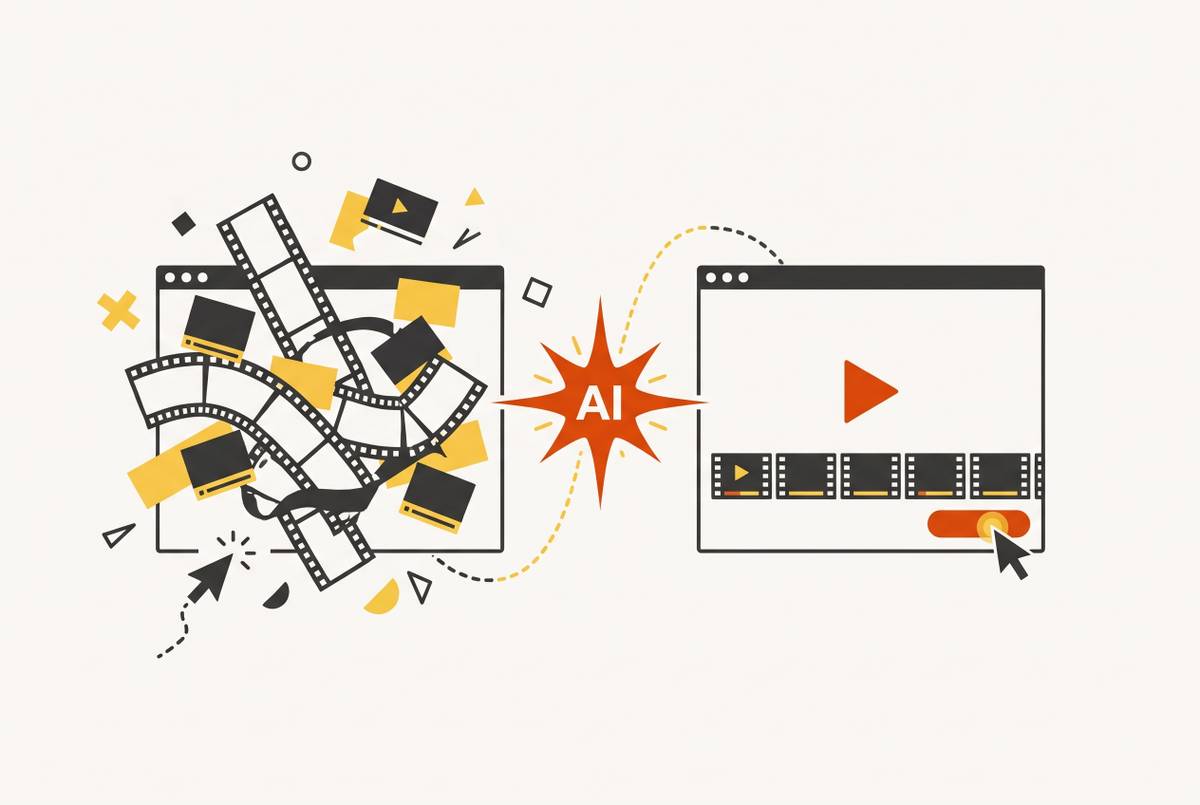
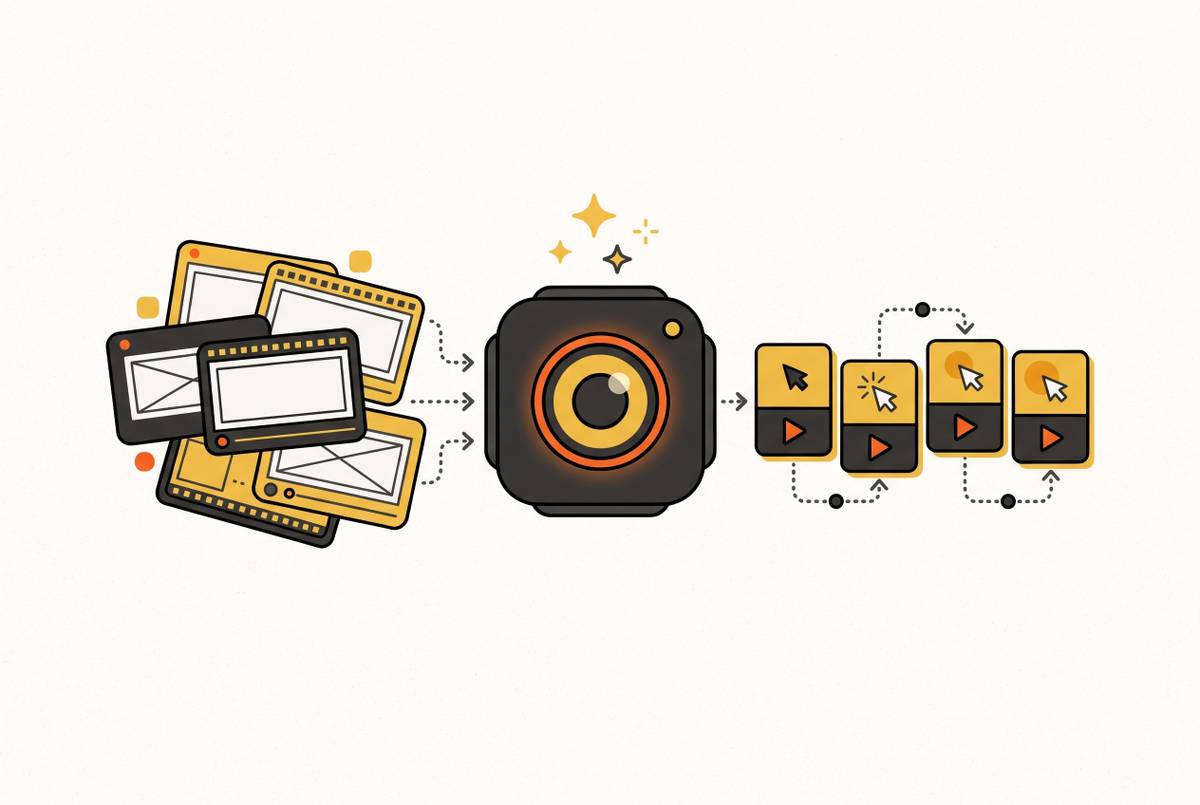
Handing a raw screencast to an AI editor can now be a complete tutorial workflow. Vorec turns recordings with no sound into timed narration and written guides, while ScreenKite lets a coding agent suggest cuts and add visuals when given plain-language instructions. The practical answer to editing videos with AI is to automate production, keep human approval, and leave the timeline alone.
Why the old screencast-to-tutorial pipeline broke down
Vorec's workflow breakdown shows why a short tutorial can become a long assignment. The creator writes a script, sets up a microphone, records with retakes, then cuts mistakes, synchronizes audio, and adds zooms in a timeline editor. Captions and annotations follow, then export and upload. Each stage waits for the one before it.
That cost compounds with every workflow a team needs to explain. Recording the screen is only one part of the work, while the remaining stages demand different skills and applications. Most teams therefore document only their most critical flows. The rest gets skipped, so much of the product has no video to show how it works.
What AI actually replaces in this pipeline — and what it does not
AI automation in 2026 removes three major time sinks, namely script writing, narration, and audio-video synchronization. It can draft speech around on-screen actions, generate the voice, and time it against the footage. It also takes care of filler removal and silence cuts, and writes documentation. Where recorded click data exists, it can add click ripples and automatic zooms.
Vorec's guide draws that boundary explicitly. “AI drafts the script, voices it and times it; you still check the result before publishing.” In the standard workflow, the creator records the walkthrough, reviews the draft before voicing, and approves the final cut. The guide puts conceptual talking-head explanations, case studies, testimonials, webinars, and creative content needing custom animation or non-standard editing outside the scope of current automation. A software demonstration is a better fit than a story that depends on interpretation.
Too many cuts, subtitles, or visual enhancements can make the result feel unnatural. Start with minimal edits, then add features only where they improve clarity. The goal is a useful tutorial.
Stage 1 — Recording: what to capture so AI has clean material to work with
For the practical workflow, begin with a simple outline and record short, focused segments. What the automation can do later depends on the raw capture. Coherent chunks give transcription something useful to organize, while tangents leave more decisions for the reviewer. Short segments make that job much easier. AI can remove dead air, but an unfocused demonstration still needs a clearer route through the task.
ScreenKite's workflow guide instructs users to enable word-level audio transcription in Settings → Transcription before recording, so automated spoken cuts are available. For a narrated capture, record the screen, webcam, microphone, and system audio in one pass where those tracks are needed. The guide identifies these as the four tracks saved automatically after recording. They give the agent the material it inspects before editing.
Click data is a separate recording requirement. Vorec's guide identifies saved click coordinates as the precondition for automatic zooms and click markers. Leave room for captions while recording too, so the text has a place to sit without hiding the interface being explained.
Stage 2 — Transcript-based editing: removing silence, filler, and mistakes without touching a timeline
Transcript-based editing replaces scrubbing through footage with reading text. Deleting a passage removes the corresponding video. That makes the editing surface familiar to anyone who can revise a document. The timeline still exists underneath, but it stops being the place where the creator must do the work.
ScreenKite's step-by-step guide describes a specific sequence. The agent transcribes the microphone track at word level, finds pauses and silences in the waveform, and scans the transcript for filler phrases such as “um,” “uh,” and “like.” It then shows the cuts it suggests and asks for approval before changing anything. After confirmation, it executes the trims directly on the timeline. The instruction can be as plain as “Remove silent pauses and filler words from the audio track.”
Approval is the hinge of this process. The agent proposes pacing decisions, while the creator can reject individual cuts without throwing away the rest. A pause that matters should stay even if it sounds like dead air. This preview-before-apply model gives non-editors control without making them learn to use trim handles and giving them another reason to postpone publishing.
Stage 3 — AI narration and script generation: voicing a tutorial without recording audio
Vorec's guide describes AI identifying meaningful on-screen steps, drafting a voiceover from that context, generating speech, and synchronizing it with the footage. Its freeze-sync mechanism holds a frame when the narration needs more time. Recording without spoken audio removes the microphone setup and spoken retakes from this path.
The creator's work shifts to reviewing the script before voicing. Read it for steps the AI misunderstood, then correct the wording and approve it. This is a review gate rather than a blank-page assignment. It also gives the creator a way to improve delivery, because cleaner script language can produce more natural-sounding output. Some viewers still think generated voices sound fake, and people who review the tools often complain about voice quality.
A human voice is equally valid for audiences that prefer it. In that workflow, use the AI draft as a teleprompter script and read it in one confident take. Transcript-based cleanup then cleans up the recorded speech. The audience and the creator's needs guide the choice.
Stage 4 — B-roll, zoom, and visual polish: what the AI adds on top of the raw capture
Once the explanation works, the visual layer can direct attention. ScreenKite's workflow segments the recording into narrative beats, including the introduction, feature overview, core demonstration, and summary. For those beats, the agent suggests things to add, such as nameplates, highlight cards, feature chips, and action checklists. It then renders and places them on the overlay track.
The workflow offers sparse, medium, and dense B-roll settings. Sparse uses a handful of key visual elements for a clean documentary style, while medium is the guide's recommended default and dense is suited to technical tutorials. For a restrained first edit, start sparse. Add more where it helps someone follow a step, rather than treating every empty patch of screen as work left to do.
Where the recorder saved a click coordinate, the agent can add a zoom keyframe at that moment without the creator finding the frame manually. That can make a small control easier to follow. But too many zooms and overlays draw attention away from the demonstration, so visual polish should make the action clear.
Stage 5 — Captions: why they are not optional and how to generate them correctly
Captions should be on by default because many people watch tutorials without sound, especially in offices and social feeds. They are a functional requirement. The transcription pass already provides the words and timing, so captions do not need a separate transcription job. Much of the work is already done.
Placement still needs human attention before publication. Burned-in captions need to stand out clearly and leave faces, interface elements, and product shots in view. Use the space planned during capture to keep text clear of the action. A caption that explains a button while hiding it has a sad knack for irony.
Stage 6 — Dual output: getting a structured help article from the same recording
The recording can also become a searchable written reference. Vorec's guide shows how chosen actions, screenshots, and narration become documentation, with a step-by-step article made from the same capture. The output can include numbered instructions and embedded screenshots. It is not simply a transcript dumped onto a page. The same workflow supports both viewers who want a demonstration and readers who need to find a particular step.
For SaaS teams documenting dozens of features, that changes where production slows down. Recording workflows becomes the bottleneck. A single capture supplies two publishing formats. When the interface changes, an updated recording can regenerate both outputs instead of requiring independent edits to video and documentation.
Agent-native recording: when the AI initiates the capture, not just the edit
An agent can initiate capture on a schedule or trigger and return a project ready for editing. This is directed automation. The user gives natural-language instructions through a coding agent, which works on the project without the user having to work in the timeline.
ScreenKite's agent workflow connects through coding agent CLIs such as Claude Code, ChatGPT Codex, Antigravity, Grok Build, and Kimi. The agent connects to the project session and inspects its structure before proposing edits. It checks how long the recording is, which recording tracks are there, which auto-zoom keyframes are already set, and what state the overlay and caption tracks are in. The project is not treated as an unexplained video file. The agent starts with the recording's structure and existing edits.
The local-first design is relevant to teams with privacy or data-residency requirements. Recordings save to the user's disk, the coding agent runs on the user's computer, and transcripts and timeline edits stay in the project. ScreenKite is free to use with watermarked exports. A one-time Pro purchase removes the watermark and animated brand outro.
Which AI video editor fits your workflow without manual timeline work?
The main choice is between a self-contained tool and an agent-native system connected to tools the team already uses. Vorec fits the silent-recording route. It accepts a screen recording, drafts narration, generates voice, synchronizes timing, and can produce a written step-by-step guide. It offers a free trial. For a team that needs voiced tutorials and help articles from one capture, those capabilities align directly with the job.
ScreenKite suits developers and technical creators who already use coding agent CLIs and want processing to stay on their own computers. It records screen, webcam, microphone, and system audio, then exposes the project to a coding agent of the user's choice. Natural-language instructions tell the agent to make silence cuts, handle filler removal, and place B-roll. The agent proposes cuts before applying them.
Does the team already use a coding agent CLI, or would setting one up create friction? Is data residency a hard requirement, or is cloud processing acceptable? Does each recording need to produce a written article as well as video, and should narration come from a silent capture or the creator's own voice? Those answers are more useful than a generic “best AI editor” badge.
What to do when the AI edit needs correction before you publish
Check whether filler removal cut an intentional pause, whether a zoom fired before the relevant interface appeared, and whether narration misidentified an ambiguous step. These are targeted checks. The workflow is designed to compress review and approval to minutes.
For a bad cut, restore the trimmed transcript text and the matching video returns with it. For a narration error, edit the script and regenerate the voiceover without recording again. A stumble, wrong click, or stretch of dead air is an editing problem. After corrections, re-exporting updates the shareable link so viewers receive the corrected version without a replacement upload or a round of notifications. The last step is a quick correction.