Windows Screen Recorders Without Watermarks Ranked by Walkthrough Quality
OBS excels at capture, but ActivePresenter better guides viewers through step-by-step lessons.

OBS Studio is the best free, watermark-free Windows recorder for capture control, but it leaves walkthrough guidance, editing, and sharing to separate tools. ActivePresenter is the better free choice for structured training, while ShareX works well for documentation with lots of screenshots. This ranking judges walkthrough quality by the whole journey from recording to a clear, shareable lesson.
Why walkthrough quality is a different criterion than recording quality
A walkthrough succeeds when someone can repeat the steps. That takes more than crisp footage, smooth motion, or a large file that looks impressive sitting in a folder. Even with a 4K/60fps recording, viewers may have to hunt for a tiny button, wait through a loading screen, or follow a mistake the creator could not cut. Recording fidelity preserves what happened, including everything that should not have happened.
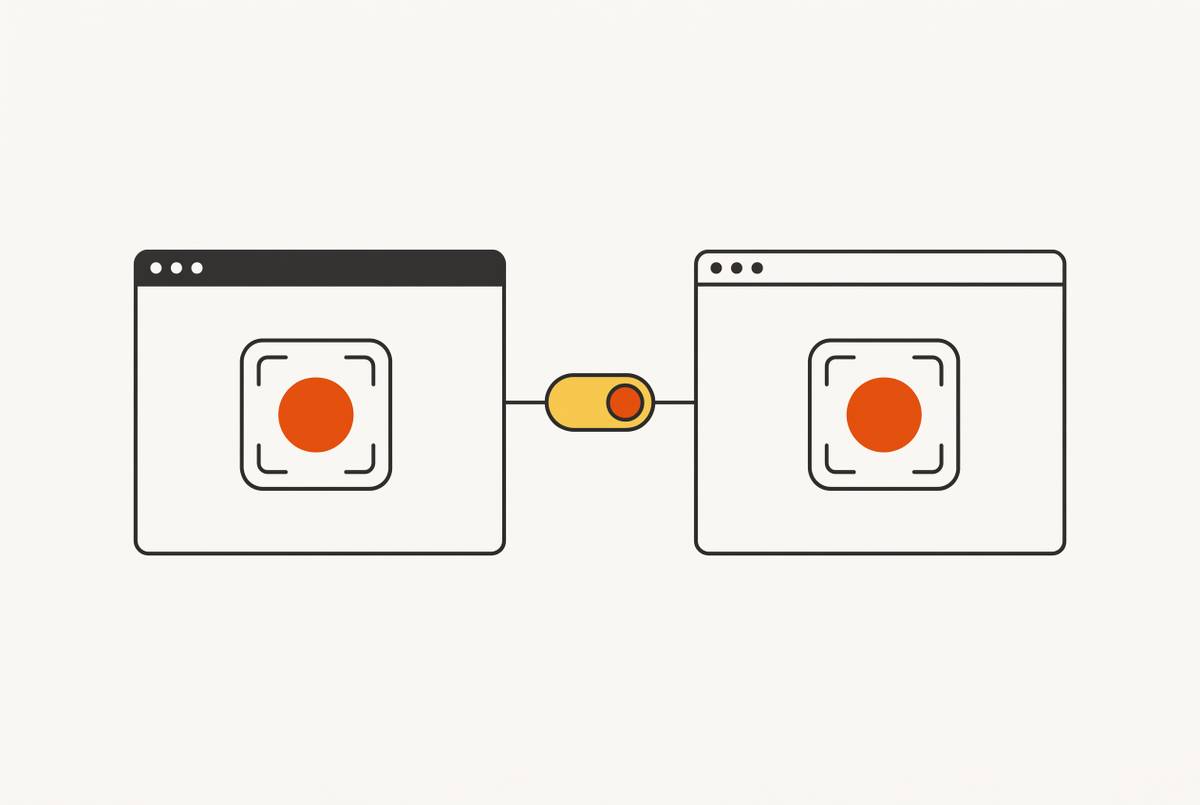
A branded badge in the corner of a product demo or onboarding video signals “free tier” before the explanation has earned the viewer’s trust. Removing that badge is an entry requirement. Limits on exports and missing editing features can still keep a clean recording from becoming a video that people can use.
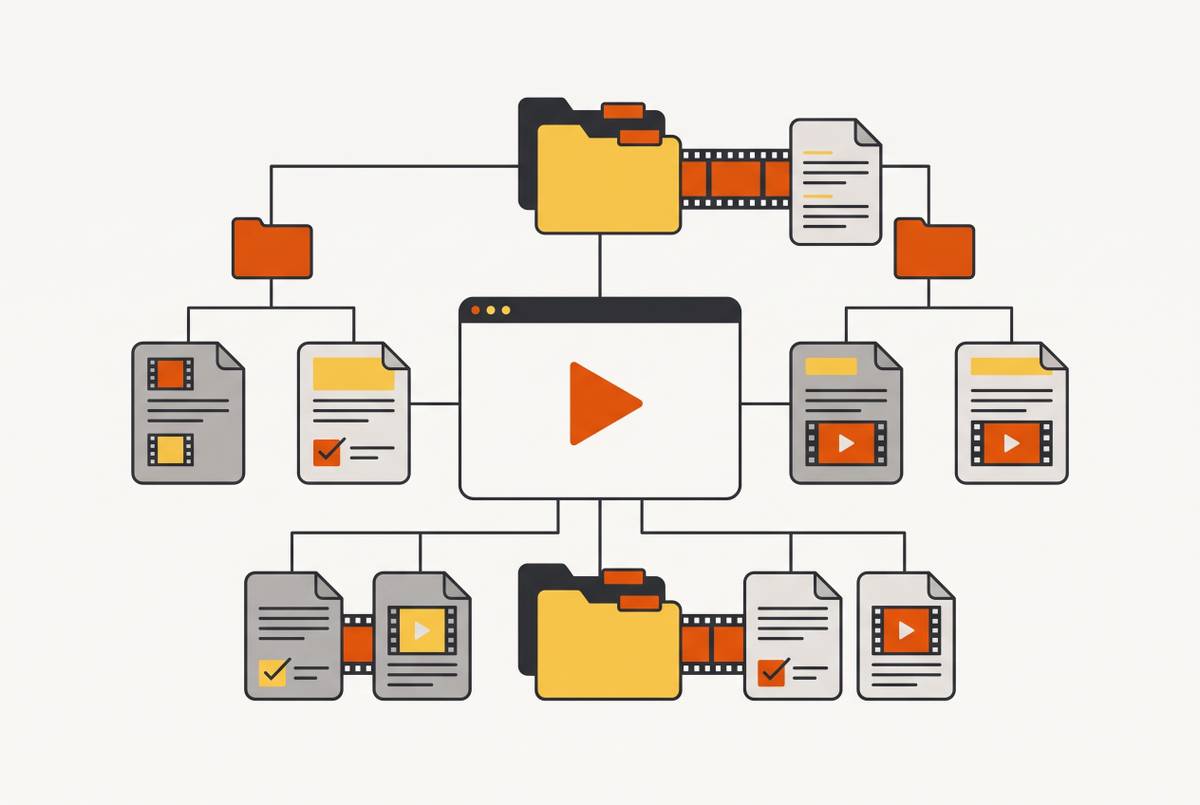
The four-stage walkthrough pipeline and what each stage demands from a tool
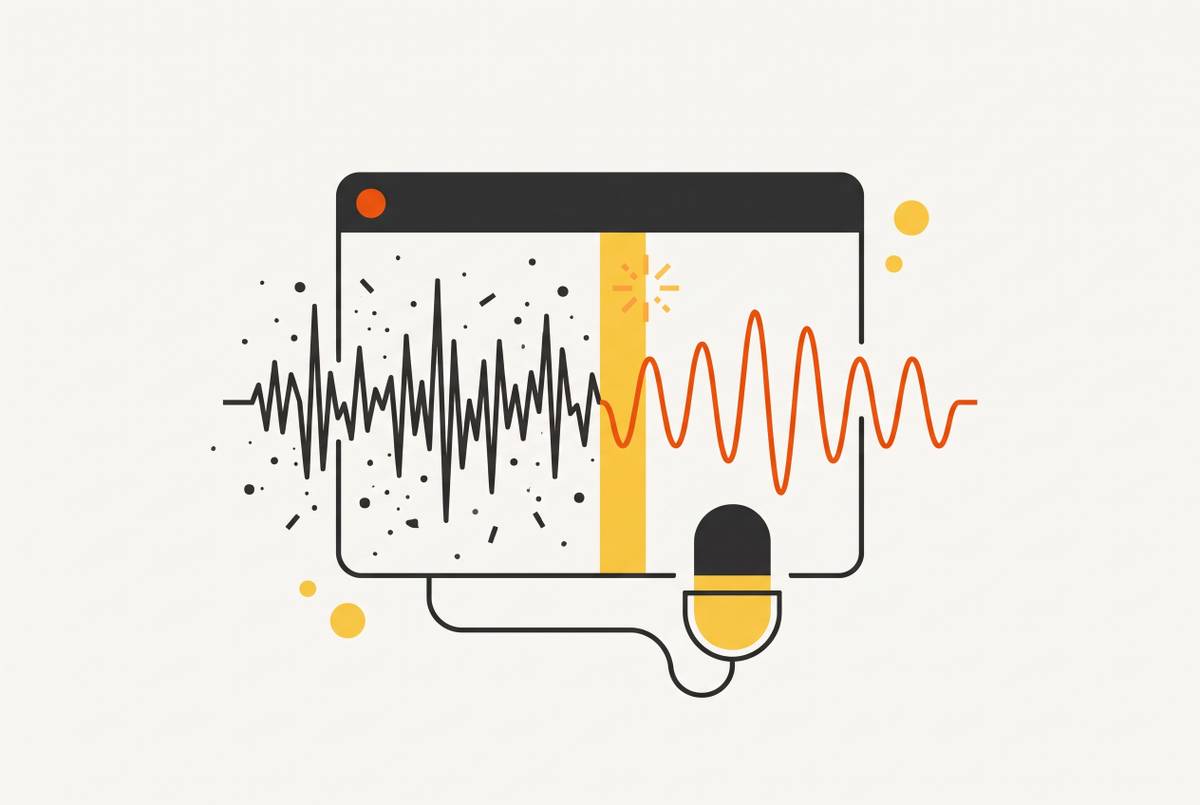
Capture earns its place by making the interface readable and the narration easy to follow. For UI motion, 1080p at 30fps is the practical sweet spot, with 60fps recommended for animations or fast scrolling. Recording at 4K makes files larger and takes more processing, but only helps viewers understand the footage if it will be zoomed or cropped later. Audio deserves more attention than extra pixels. For narration-led walkthroughs, the practical requirement is a dedicated external microphone and a short test take before recording the full sequence.
Annotations, zoom callouts, click highlights, and cursor emphasis distinguish a lesson from an interface doing things somewhere on a screen. Narration alone can explain a simple flow, but dense interfaces and small controls need more help. Post-production then removes the distractions that guidance cannot fix, including dead air, pauses, and mistaken steps. Trimming is the minimum professional edit, while transcript-based editing lowers the skill needed by letting creators cut words in text.
Sharing is the final stage. An instant link and a download-and-upload cycle are different propositions for someone sending a quick explanation to a colleague or customer. Time spent waiting for a render or upload can use up the time saved while recording. Under this rubric, a tool gets credit only for the stages it actually handles. That distinction puts powerful recorders and complete walkthrough tools in different positions.
OBS Studio: maximum capture control, near-zero walkthrough pipeline
OBS Studio leads this group on unrestricted free capture. It is open source, with no watermarks, time limits, resolution caps, or feature gates, and it supports recording up to 4K at 60fps. Its built-in audio mixer and VST plugin support provide detailed sound control. That makes it a strong capture engine for long lectures, multi-hour workflows, and technical creators who already have an editing setup.
For readers concerned about slowing down their computer, OBS’s hardware encoding support is the relevant feature. The OBS knowledge base lists NVIDIA NVENC, AMD AMF, and Intel Quick Sync as supported options that offer minimal performance impact, with reduced quality at the same bitrates compared with software encoding. That trade-off still involves some processing load. Setup also takes real time because scenes, audio routing, and encoding settings need attention. The OBS Quick Start Guide names Tools > Auto-Configuration Wizard as the fastest way to get the setup working.
The weakness begins when the recording stops. OBS supplies no automatic zoom, click highlights, cursor emphasis, or annotation layer to guide viewers through the footage. It also has no built-in editor, so trimming and polishing require separate software. It also has no hosting or instant share link.
ShareX: the power user's capture engine, not a walkthrough tool
ShareX puts its power into capture automation. Its many features suit developers and technical communicators who work with screenshots, bug reports, and quick GIF demos. Video is one of several outputs in that workflow. That distinction explains why ShareX can be excellent for documentation without being the best tool for a polished step-by-step video. It solves a different bottleneck from OBS.
Its “after-capture” task chains automate work such as capture, annotation, upload, and copying a link. This gives ShareX a meaningful advantage at the sharing stage, where manual file handling would otherwise slow down a quick exchange. ShareX has screenshot annotations, with no guidance layer for recorded walkthroughs, no webcam overlay during recording, automatic zoom, or click highlighting, and no built-in video editor. Its functional video quality is also less compelling than its automation, so the strongest reason to choose it is the capture-and-upload workflow.
Xbox Game Bar and Snipping Tool: why not just use what Windows gives you?
A built-in screen recorder and Snipping Tool let you record without installing anything. For a thirty-second internal clip or a quick bug capture sent straight to a colleague, the built-in options can be enough. Microsoft’s Snipping Tool learning center gives Windows logo key + Shift + R as the shortcut for opening its video-capture overlay.
Neither has the guidance layer, built-in walkthrough editing, or way to share instantly that this ranking looks for. Capturing a single app is a small job, but an explanation for customers needs to show them where to look, have its errors cut out, and be easy to send.
ActivePresenter: the eLearning authoring approach to walkthrough structure
ActivePresenter treats a walkthrough as an eLearning object. That makes it the best free choice here for structured tutorials with quizzes. Its authoring environment supports callouts, interactive elements, and quiz and hotspot features, so guidance becomes part of the lesson’s design. The creator can go beyond spoken instructions and build lessons around what learners need to notice and show they can do.
That difference changes how its pipeline should be judged. Capture supplies the material, but annotation-rich authoring and lesson structure are the reasons to choose it. When the deliverable needs interactivity, branching, or assessment, the work after recording is not just trimming a linear video. The more complex environment requires learning, and that overhead has a purpose in formal training. For fast async communication, however, it is the wrong fit because the goal is a quickly shared explanation.
EaseUS RecExperts: a full-featured recorder with a meaningful free-tier constraint
EaseUS RecExperts extends beyond raw capture, but its free export limit restricts its use in a walkthrough workflow. EaseUS’s overview lists watermark-free recording on Windows and Mac, no recording time limit, capture up to 4K, and screen, webcam, and audio modes. It also lists multiple export formats, including MP4, MOV, and AVI. AI-powered editing and video processing add post-production capabilities missing from OBS and ShareX.
The free version limits exports to one minute. Even with unlimited recording, that export restriction applies to the useful deliverable: the video that leaves the tool. A short clip may fit, but a longer walkthrough needs the paid tier. The fair framing is “try before you pay,” rather than free walkthrough production with a few optional extras.
What an AI-assisted walkthrough pipeline adds that none of the above provides
An OBS or ShareX user can finish recording and still face a separate editor, a hosting destination, and the work of turning raw footage into a coherent explanation. Tools in this category combine functions such as filler-word and dead-air removal, synthetic narration, automatic zooms, captions, and instant shareable links. The gain is fewer handoffs between applications. It is not simply a sharper recording or an AI label stuck on the export button.
Trupeer AI approaches this as an end-to-end walkthrough pipeline. It automatically restructures narration, removes filler words, applies cinematic zoom paths, generates synthetic voiceovers, and translates walkthroughs into 65+ languages. Clueso converts a raw screen recording into an edited software demo by improving the narration script, generating a natural-sounding voiceover, adding captions, and applying automatic zooms. With Clueso, the creator can demonstrate the product normally, with a complete script beforehand optional.
The editing model is especially useful for non-editors. Transcript-based editing lets creators remove words from text instead of hunting through a timeline, while in-tool trimming means a mistake need not force a complete retake. Automatic captions and guided zooms address comprehension, and instant upload with a shareable link addresses delivery. Those functions fit product demos, onboarding, async team walkthroughs, and software documentation, where speed alone is not enough. Creators must still check that their chosen plan has watermark-free output, even if tools in this category promise it.
Automation also creates an accuracy cost that manual editing does not. A generated script or voiceover can use the wrong button name or describe a step incorrectly, so the creator must review the result before publishing. Vendor dependency adds a separate concern because externally published content can depend on a provider’s uptime and pricing. For teams with long-term documentation commitments, those obligations belong in the decision just as much as the time saved during editing.
How to choose based on where your walkthrough pipeline actually breaks down
For customer-facing or externally published work, the watermark filter comes first, and a branded watermark disqualifies the output regardless of other strengths. If the remaining problem is unrestricted capture for long sessions, multi-source recording, or maximum resolution, choose OBS and accept separate editing and sharing. For screenshot-heavy documentation, bug reports, and GIF-first communication, choose ShareX for its capture-and-upload automation. If the deliverable is a formal training module with quizzes, branching, or interactivity, choose an e-learning authoring tool.
For a quick internal clip, the built-in Windows tools save the work of setting up another tool. RecExperts makes sense as a trial, but its one-minute free export limit rules it out when the required deliverable is longer. When the delay comes after recording, an AI-assisted pipeline addresses the guidance, editing, and sharing work, with output review and vendor dependency included in the cost. The decision is not which tool has the longest feature list. Match the next deliverable to the missing stage, and choose the tool that completes that job.