Browser-Based Screen Recorders vs. Native Desktop Apps for Enterprise Teams
Enterprise teams should choose based on IT policy, session stakes.
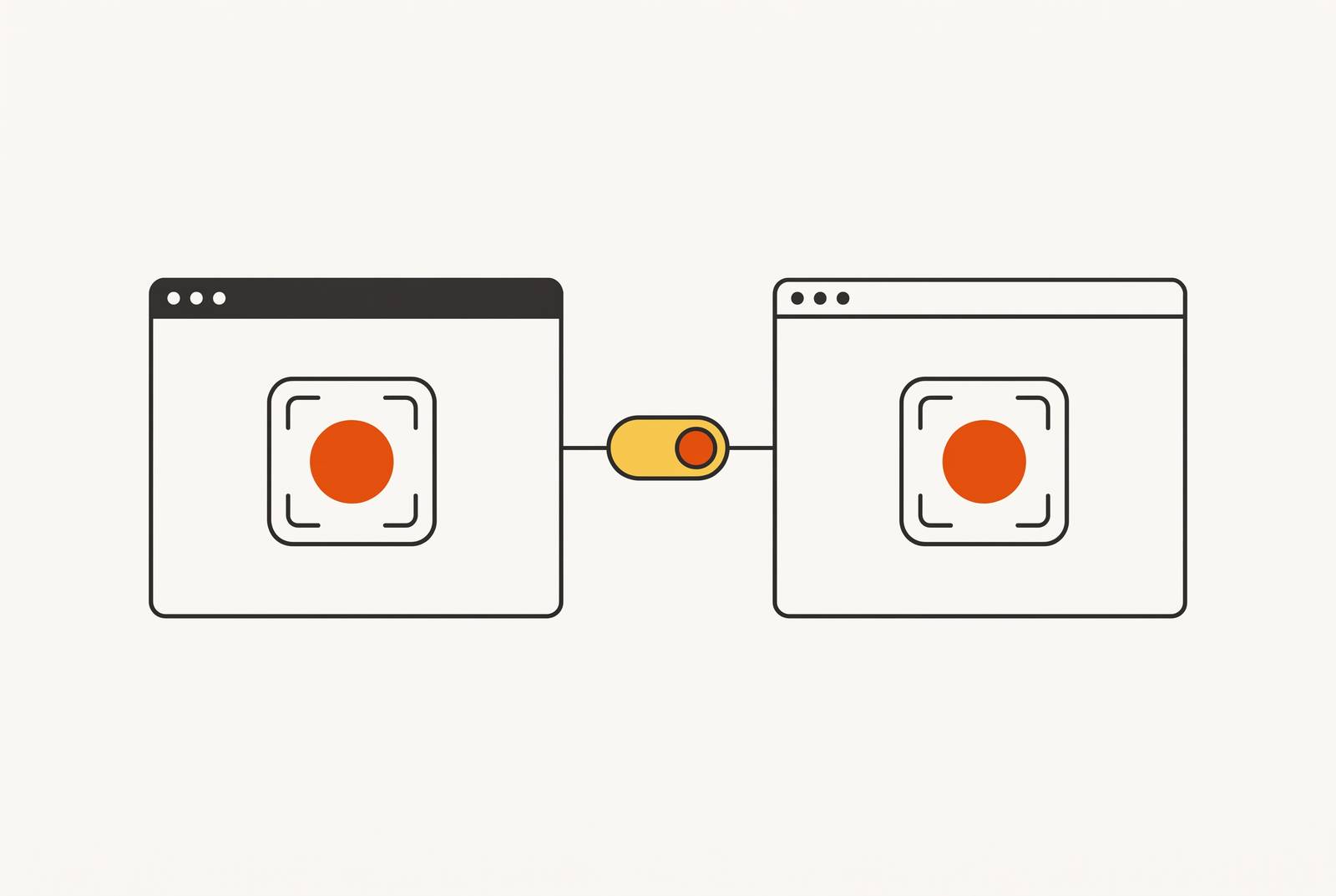
For enterprise teams, the best screen recorder is the one IT permits, that reliably captures the work, and that makes editing and sharing easy. Browser-based recorders work well on devices with tight restrictions and for short web-based updates, while native desktop apps are a better fit when sessions would cost a lot to repeat or need to capture more. The choice turns on those three constraints, not which tool has the longest feature list.
Why enterprise teams face a genuinely different decision than individual users
“Which is better?” sounds like a reasonable starting question. Enterprise teams face a less glamorous one instead. Which option can the organization actually deploy and sustain? An individual can choose a recorder for convenience, while a team has to account for managed devices, security policy, procurement cycles, and work that passes between people. A favorite feature does little good when the installer cannot get through the front door.
That gap grows as screen recording becomes daily infrastructure for distributed teams. A tool for async updates, walkthroughs, and training has to work for more than the one person who is keen to use it. Otherwise, its friction spreads with its use. IT policy limits who can record, reliability limits which sessions the team can trust it with, and footage needs a suitable workflow to reach an audience. Those constraints turn a personal software preference into an operational decision.
How IT policy shapes which deployment model is even on the table
On managed enterprise laptops, software whitelisting or mobile device management profiles can prevent unapproved desktop installations. That can end a feature comparison before it starts. Browser-based tools use the browser’s native screen capture API without requiring a desktop package, so they can sidestep the installation gate. Where browser use is allowed, contributors can record without an IT ticket, a package to deploy, or extra work on endpoint management.
However, “browser-based” does not mean “outside IT policy.” Organizations can also restrict Chrome extensions, leaving teams to choose between approved desktop software and fully web-based recorders that need no extension. A browser extension and a web app may feel similar to a contributor, but they do not face the same deployment restrictions. For teams with Chromebook fleets or locked-down shared devices, browser-based recording may be the only way to record, whatever quality they would prefer.
Approved native apps offer a different kind of control. Local processing means recordings do not transit a third-party cloud by default, which is relevant when legal, finance, or HR teams capture sensitive content. Teams should discuss both what they are allowed to install and how recordings are handled, even though these are separate questions. The practical lesson for procurement teams is to map managed Windows and Mac endpoints, Chromebooks, and BYOD before evaluating features. Otherwise, the shortlist may become a beautifully formatted list of things nobody can install.
What recording reliability actually means when a failed capture has real consequences
Once deployment is possible, the question shifts to what happens during capture. Browser-based tools depend on browser memory, and many need an active internet connection to upload and process recordings in the cloud. A Wi-Fi drop can leave a long recording stuck in processing, with the work unrecoverable. That is a failure mode, not a universal verdict. It does not mean every browser recording requires an uninterrupted connection or that every interrupted session disappears.
Native desktop apps process recording data locally, so a dropped connection during capture does not interrupt that local processing. Some also offer crash recovery that may save unfinished files after a system failure, although this varies significantly by app. Local processing removes one dependency, while recovery features address another kind of failure.
The cost of failure makes those differences useful. Losing a 60-second async message is annoying, while losing a 45-minute customer onboarding session leaves a lot of work to do again. A failed compliance recording may be impossible to reconstruct in a regulated context. Duration is only part of the calculation. Browser tools fit short updates where another take costs little, while desktop apps are the appropriate choice for external-facing sessions or recordings that would be costly to repeat.
Where browser-based tools have a genuine technical edge for web-app-centric teams
For teams recording web applications, the browser can offer more than easy deployment. Browser-native recorders with DOM awareness can read the page’s underlying structure, including its elements, their sizes and relationships, and what the user is interacting with. That gives them information beyond pixels and cursor position. A desktop recorder cannot learn how the page is built through cursor tracking alone.
That knowledge can support automatic zoom around interactions in SaaS dashboards, CRM walkthroughs, and browser-based onboarding. Here, browser-native architecture is a technical advantage rather than a compromise accepted to avoid an installer. But the advantage has a firm boundary. When a recording moves into Figma desktop, Xcode, or an internal tool outside the browser, DOM-based zoom cannot start on its own. Screen or window capture can still record the session, but the zero-effort zoom behavior is lost.
For web-app-centric teams, that changes the evaluation. Assess browser-native tools on the quality their page awareness makes possible. A useful zoom cannot recover lost footage, just as local processing cannot supply knowledge of a page’s structure. The strongest fit depends on both the cost of failure and the work shown on screen.
How capture scope affects what enterprise teams can actually record
A recorder can run through a whole session and still miss something that matters. System audio is a concrete example of that gap. Native desktop apps on macOS can handle system-wide audio capture, with application audio and microphone input recorded at the same time, which Chrome extensions cannot do by default. That capture limitation becomes decisive only when the recording needs those sounds.
A product demo may have a video clip, while a software walkthrough may need in-app sound cues. Training can also reference audio from another tool. In those cases, the recording needs more than a clear voice and a visible pointer. If the tool cannot capture the required audio without a workaround, the workflow is already more complicated than the record button suggests. A silent demo of a sound cue fails to get the message across in an unusually literal way.
The same scope question extends beyond audio. Desktop apps can capture offline applications, system menus, and desktop tools without the context-switching failures that browser-based recorders can have when work moves outside the browser window. A team that records only web dashboards has different needs from one that moves among several kinds of software. For mixed recording needs, the safer choice is a desktop app or a tool spanning both deployment models. That recommendation follows from coverage, rather than from a blanket preference for native software.
Why workflow fit — from capture through editing to share — is the constraint that outlasts the deployment decision
A tool can pass the IT filter and meet capture requirements yet still fail in everyday use. In the traditional “record then edit” workflow, footage waits for a separate application, a separate skill, or a separate block of time. That hand-off is where useful recordings can stall. The team has produced a file, but not yet something a colleague can watch.
For busy contributors, a hard step after recording makes writing text or having another synchronous meeting look easier. Adoption is not a video-quality contest at that point. A recorder that makes great videos is of no use if contributors avoid finishing the work. Tools like Tella, a screen recording and video editing platform where recording, editing, and sharing happen in one place without switching apps, exist precisely to close that gap. By contrast, a single workflow for recording, editing, and sharing removes the need to move files across applications. Its advantage is not simply fewer clicks, but fewer hand-offs where the task can stop.
How many steps sit between “stop recording” and “teammate can watch”? Does editing need another application, and can non-editors make videos that others can use without being trained? Rendering time also affects whether a recording is ready to share immediately or has to wait. These questions remain relevant long after deployment approval, because they describe the work contributors must repeat every time they make a video.
What the editing experience looks like for non-editors on enterprise teams
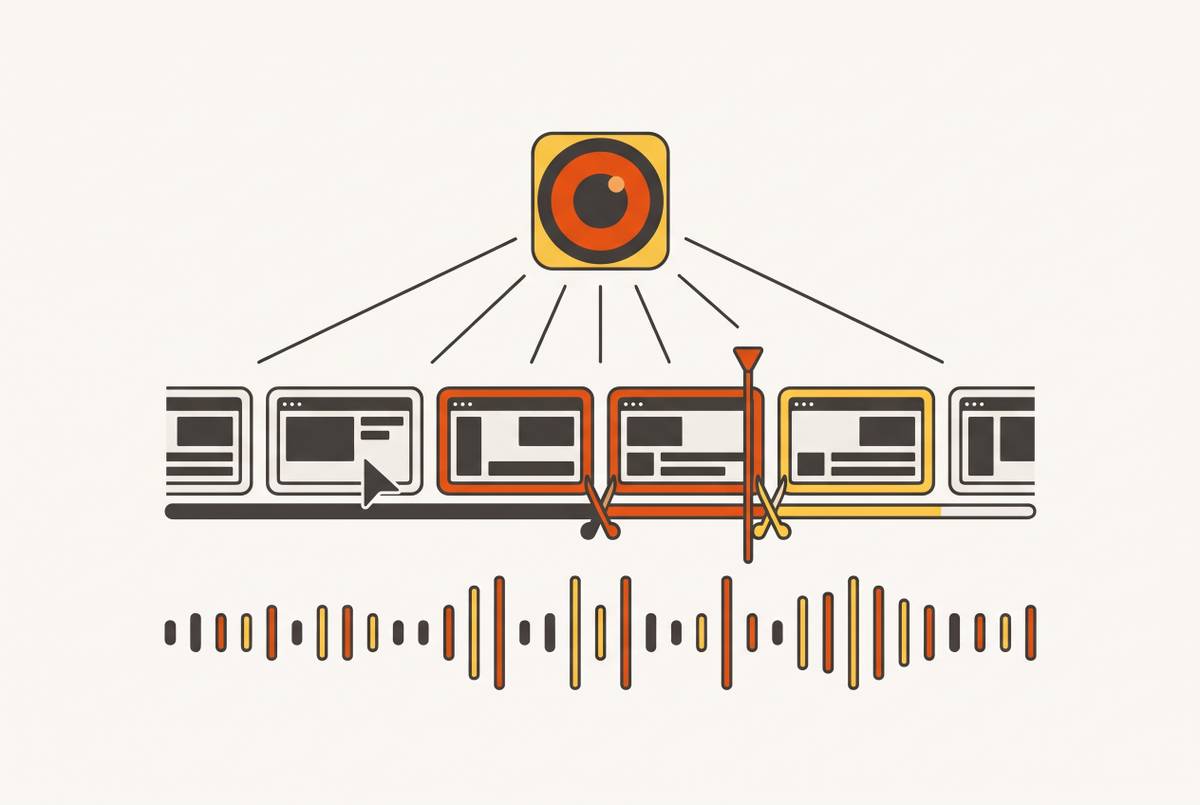
Most enterprise contributors are not video editors, so an interface built around timeline editing can exclude people who otherwise have useful knowledge to share. Transcript-based editing gives them a more familiar route. Instead of learning to cut footage on a timeline, they edit the text to remove mistakes, cut filler, and tighten pacing. The task becomes closer to revising a document. That shift makes editing accessible to contributors who would not otherwise attempt it.
AI-assisted tools can reduce other parts of the finishing work. Auto-generated subtitles and transcripts, silence removal, filler-word detection, and auto-zoom do work that people would otherwise have to spend more time doing by hand. Their value is in the work they remove. For example, zoom that follows an interaction removes the need for manual keyframing, while transcript-based cuts let a contributor fix a stumbled sentence without recording the whole session again.
Pane Studio illustrates the depth available in desktop-native editing. It offers automatic and manual timeline zooms, cursor smoothing with per-segment control, motion blur, and blur and focus masks. Those capabilities support polished output without a video editor, but they require a Windows desktop app. Deployment constraints have not left the conversation. An editing feature can be useful and still unavailable to contributors whose devices cannot run the application.
For teams seeking contributions from many people, approachability has more practical value than maximum editing depth. A feature-rich interface used only by specialists can leave everyone else waiting for help. Judge editing by what non-editors can finish. Transcript-based cuts and AI assistance are enterprise-relevant when they turn captured knowledge into usable video without creating a specialist bottleneck.
How to choose the best screen recorder for your enterprise team
A defensible decision starts with the device and policy audit. Procurement teams should list the devices people use and check whether desktop installations and browser extensions are allowed. If both are blocked, fully web-based tools become the evaluation path. If desktop deployment is possible, the next question is what the team needs to record. This sequence avoids spending evaluation time on an option that cannot reach its intended contributors.
The second step is to assess typical duration, failure cost, and capture scope together. Short async updates with inexpensive retakes favor browser tools, while long-form, external-facing, or audio-complex recordings favor desktop apps. Mixed needs point toward desktop software or a tool spanning both models. Web-app-centric teams should also assess whether DOM-aware auto-zoom meaningfully improves their output. That benefit belongs next to its limitation, including what happens when recording needs expand beyond the browser.
The final step is to test the whole workflow. Teams should time how long it takes to go from stopping capture to having a link to share and check whether non-editors can finish videos that others can use without help from a specialist. They should also check whether editing or sharing requires leaving the application. Tools available as a web app, browser extension, and native desktop app can reduce the risk of switching later as policy or recording needs change. With deployment, dependable capture, and contribution tested in sequence, the team has enough to make a confident choice without needing a universal winner.