Loom Alternatives for Help Center Walkthroughs and Tutorials
Loom is built for quick async messages. Help center videos have to survive the next UI change, and that asks different things of a tool.
By Walkthrough Lab Editors · Updated
Loom made the one-take screen recording normal: press record, talk, share a link. That is exactly right for a quick reply to a colleague. It fits less well once the recordings become documentation: a walkthrough embedded in a help center article, an onboarding tutorial, a video a support team links to every day. Those videos need cutting before they publish, captions and a transcript, a file you can host where your help center lives, and a way to fix one step when the product changes without recording the whole thing again.
This page compares Loom alternatives for that job. The tools are grouped by what they are best for, not ranked, because the right pick depends on where your walkthrough work breaks down. Plans and limits change often, so instead of quoting prices we link each vendor's own pricing page. Check it before you choose.
What to look for when the video is documentation
Judge a replacement on the life of the video after the first recording, not only on how fast it captures. Five questions separate the tools below.
- Can you fix one step without re-recording everything? When a button moves, the cheapest fix is replacing the clip or sentence that shows it. Tools that record in clips, edit on a timeline or edit through the transcript make that possible; one-take recorders usually don't.
- Does it produce captions and a transcript you can publish? Captions help viewers who watch muted, and a reviewed transcript makes the video's content searchable. See AI-generated video transcripts for help center SEO.
- Can you export a file you own? A downloadable MP4 lets you host the video where your help center can embed it and keeps the library intact if you change tools again. See hosting and embedding support videos in Zendesk and Intercom.
- Can it guide the eye? Zooms, callouts and cursor highlights matter on dense interfaces where a small control is the whole lesson.
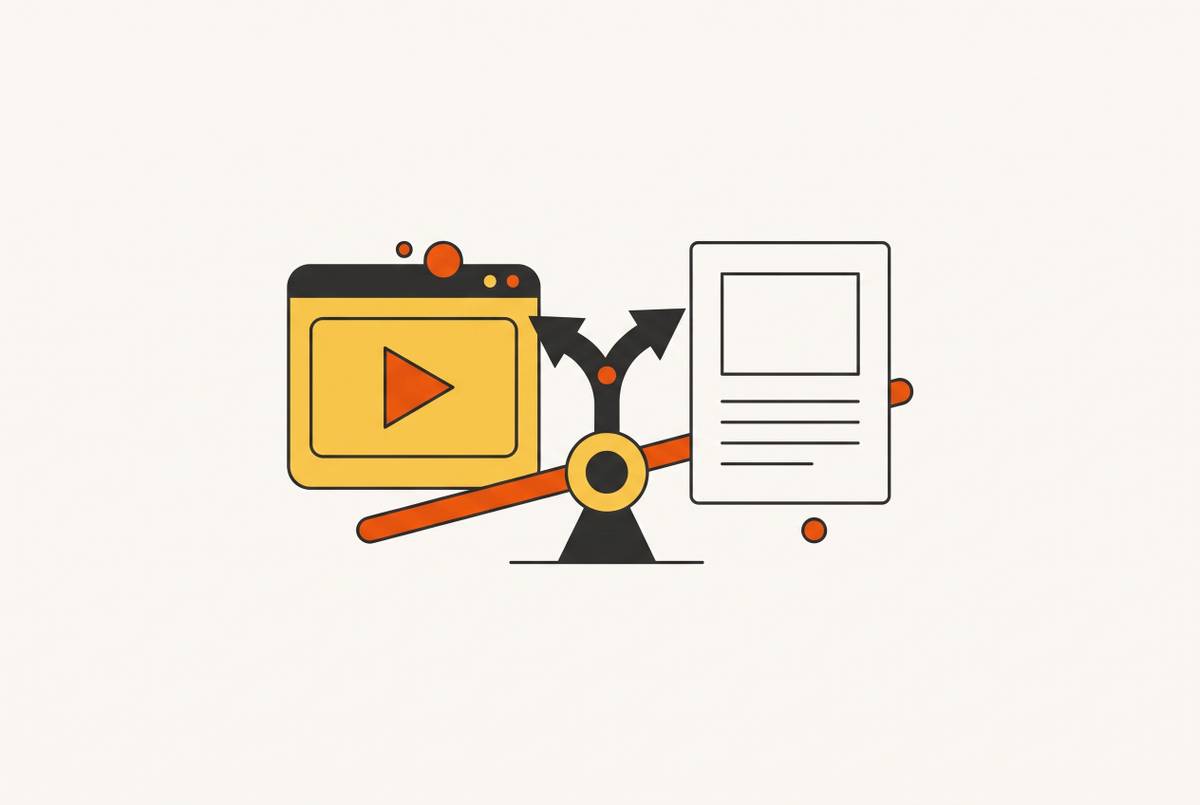
- Should this step be a video at all? A short click path is often better as a written guide with screenshots. The help center video vs. screenshot article framework helps decide.
The alternatives, by what they are best for
Each entry says what the tool is, the job it suits, and what to check before you commit. Feature names and plan contents change, so confirm anything decisive on the vendor's site.
| Tool | What it is | Best for |
|---|---|---|
| Tella | Screen recorder with AI video editing | Recording and editing walkthroughs in one tool |
| Camtasia | Desktop recorder and timeline editor | Long, heavily annotated software training |
| Descript | Transcript-based video editor with recorder | Unscripted narration that needs a lot of cutting |
| ScreenPal | Recorder, simple editor and video hosting | Loom-style recording plus basic edits and hosting |
| Scribe and Tango | Click-by-click guide generators | Short click paths better told with screenshots than video |
| OBS Studio | Free, open-source recorder | Free, unlimited capture when you already edit and host elsewhere |
| The recorders already on your computer | Built into macOS and Windows | Quick internal clips with nothing to install |
Tella
Best for: Recording and editing walkthroughs in one tool
Tella records screen, camera and system audio from a web app, a Chrome extension or native macOS and Windows apps, then keeps trimming, effects, subtitles and transcripts in the same tool before you share a link or download the video. It is the closest swap for a Loom user whose recordings now need editing before they go into a help center, without adding a second app for the edit.
Good at
- Recording, editing and sharing in one place, so fixing a step doesn't mean a trip to another app
- Subtitles and transcripts generated in the editor
- A teleprompter for scripted walkthroughs, and instant upload for sharing
- Download the finished video to host it in your own help center
Watch for
- If you build long, multi-track training courses with heavy annotation, compare it with a timeline editor such as Camtasia
- Check which plan includes the export and branding options you need
Plans and prices: tella.com/pricing
Camtasia
Best for: Long, heavily annotated software training
TechSmith's Camtasia pairs a screen recorder with a full timeline editor on Windows and macOS. Callouts, annotations and cursor effects are built for software training, and the timeline gives frame-level control over where a cut, a zoom or a replacement clip lands.
Good at
- A multi-track timeline for screen, camera, audio and overlays
- Callouts, annotations and cursor emphasis for dense interfaces
- Replacing a single outdated clip on the timeline instead of re-recording the lesson
Watch for
- Much more to learn than a one-take recorder: budget time for the editor
- Check the current licence or subscription terms on TechSmith's site
Plans and prices: techsmith.com/camtasia
Descript
Best for: Unscripted narration that needs a lot of cutting
Descript transcribes your recording and lets you edit the video by editing the text: delete a sentence in the transcript and it is cut from the video. It includes a screen recorder and can remove filler words, which suits walkthroughs narrated off the cuff.
Good at
- Cutting by transcript instead of scrubbing a timeline
- Filler-word removal for unscripted narration
- A transcript that doubles as a draft for the help article
Watch for
- A clean cut in the text can still leave a jump in the screen footage: watch the result, not just the transcript
- Check what each plan includes before you rely on it for a whole library
Plans and prices: descript.com/pricing
ScreenPal
Best for: Loom-style recording plus basic edits and hosting
ScreenPal, formerly Screencast-O-Matic, combines a screen recorder, a simple editor and video hosting in one account. It fits teams that want to trim and tidy recordings and share them without learning a professional editor.
Good at
- Recorder, editor and hosting in one account
- Straightforward trims and overlays for short tutorials
Watch for
- Check which recording, editing and hosting features sit on which plan
Plans and prices: screenpal.com/plans
Scribe and Tango
Best for: Short click paths better told with screenshots than video
Scribe and Tango don't record video. They watch your clicks and turn them into a written, step-by-step guide with annotated screenshots that you can share or embed. For a five-click settings change, that is often easier to scan, and to update, than any video.
Good at
- Turning a demonstrated task into numbered steps without writing them by hand
- Updating one screenshot when one screen changes, instead of re-cutting a video
Watch for
- Screenshots go stale with every UI change too; they are just cheaper to replace
- Not a fit where motion, timing or narration carries the lesson
Plans and prices: scribe.com/pricing
OBS Studio
Best for: Free, unlimited capture when you already edit and host elsewhere
OBS Studio is free and open source on Windows, macOS and Linux, with no watermark or time limit. It records; it does not edit or host. Pair it with an editor and a video host when cost matters more than speed. The Windows screen recorder ranking covers it in depth.
Good at
- Unrestricted capture of screen, camera and audio sources
- Detailed control over audio and encoding
Watch for
- Setup takes real time: scenes, audio routing and encoding settings
- No editor, captions or share link: every step after recording is another tool
Plans and prices: obsproject.com
The recorders already on your computer
Best for: Quick internal clips with nothing to install
On a Mac, Shift-Command-5 opens the Screenshot toolbar, which records the whole screen or a selected part of it (Apple's instructions). On Windows, Snipping Tool records video; Microsoft gives Windows logo key + Shift + R as the shortcut. Both are enough for a thirty-second clip sent to a colleague. Recording on a Mac? See the best screen recorders for Mac.
Good at
- Nothing to install, approve or pay for
Watch for
- No captions, hosting or share link: you upload the file yourself
- No way to guide the eye or patch a step later
Plans and prices: Free with the operating system
How to choose
If you used Loom mainly for sales prospecting messages, look at tools built for that job, such as Vidyard. This page is about documentation.
- Your recordings need editing before they publish, and you want one tool for record, edit and share: Tella.
- You build long training courses and want timeline control: Camtasia.
- Your narration is unscripted and needs heavy cutting: Descript.
- You want a simple recorder, editor and host in one account: ScreenPal.
- The task is a short click path: a written guide from Scribe or Tango.
- You already have an editor and a host, and want free capture: OBS Studio.
- Your videos really are quick replies and internal updates: Loom's one-take flow is its strength, and staying may be right. Check its current plans on loom.com/pricing.
Moving an existing Loom library
Switching tools is a good moment to prune. Most help center libraries hold videos that show an interface the product no longer has.
- List every embed. Search your help center for Loom links and embeds, and note which article each one sits in.
- Retire before you migrate. Any video that shows an outdated UI is a re-record, not a migration. Delete or replace it.
- Download what you keep. Check that your Loom plan and each video's settings allow downloads, then keep the original files somewhere your team controls.
- Re-host and swap the embeds. Upload to the new tool or your video host, replace each embed, and add captions and a transcript as you go.
- Measure afterwards. Compare tickets on the topics those articles cover before and after; measuring whether help center videos reduce tickets shows how.
Questions
Is there a free Loom alternative?
OBS Studio is free and open source, and macOS and Windows both include a screen recorder. Most of the other tools here offer a free plan or a trial; what each includes changes, so check the pricing page linked in its entry.
What is the best Loom alternative for software tutorials?
It depends on where the work is. For record, edit and share in one tool, Tella. For long, annotated training, Camtasia. For unscripted narration that needs heavy cutting, Descript. For a short click path, a screenshot guide from Scribe or Tango may serve readers better than any video.
Can I move my Loom videos to another tool?
Usually, by downloading them and re-uploading the files, where your plan and each video's settings allow downloads. Treat the move as a review: re-record anything that shows an interface that has since changed.